Please Wait a Moment
X

Infor LX Tips, Infor LN Tips, BPCS Tips, Baan Tips, Infor M3 Tips & Infor ERP News

Crossroads Connections

Infor ERP Tips & News from the Experts

Infor LX | Infor LN | BPCS | Baan | Infor M3

Infor LN & Baan Tips & Tricks for FINANCE: Set Up and Calculate Currency Differences

Kathy Barthelt 0 3911 Article rating: 5.0

To set up and calculate currency differences for foreign currencies:

  • Use the Company Parameters (tfgld0503m000) session to specify the profit and loss ledger accounts, 12 profit and loss dimensions, and transaction type for a posting exchange rate differences that is calculated using the FIFO method. To specify this data, use the Currency Diff. FIFO tab. The reports printed from the Print Company Parameters (tfgld0404m000) session, include the Currency Differences FIFO fields.
  • Use the Calculate Currency Differences (tfgld5201m000) session to calculate the currency differences resulting from transactions posted on accounts for which the field Currency Analysis in the session Chart of Accounts (tfgld0508m000) is set to Required.

Infor LN & Baan Tips & Tricks for TECHNOLOGY: Using the Data Access Layer (DAL)

Kathy Barthelt 0 4269 Article rating: 5.0

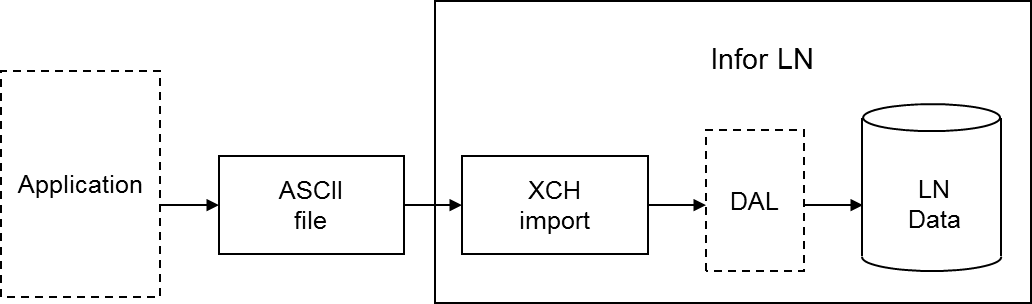
During an Exchange import, you can use all the functionality programmed into the Data Access Layer (DAL). If you use the DAL, Exchange carries out all the constraint checks, integrity checks, and side effects, for example, updates on other tables, that are programmed into the DAL. Database integrity is guaranteed automatically.

Using the DAL reduces the costs of interface development. You can use the DAL to import standard interfaces developed by Infor for partner products, as well as for specific interfaces built by customers, for example, to integrate LN with legacy systems. You can use the DAL in both single site and multisite environments.

The checks or additional actions specified in the DAL are carried out for each row that is imported. Database errors are logged in the same way for DAL and non-DAL import. DAL hook errors are also logged. You can specify whether the DAL property checks are or are not carried out.

If you specify the use of the DAL for a table relation for an import, the dal.new, dal.update, and dal.destroy functions are used instead of db.insert, db.update, and db.delete. You can choose to use DAL for particular tables and not for other tables, therefore, an import batch can contain both types of table relations simultaneously. The import through DAL works for both the import based on audit or indicators (inserts, updates, deletes), and the full import (inserts only).

DAL settings are run time aspects, which means you can change these aspects without having to regenerate the import program. DAL settings are also logged in the log table at batch line level, to enable you to find out what the DAL settings were when the import was run.

Important to realize is that an update through the DAL can result in a number of side effects. Actions performed by the DAL must not be carried out twice. For example, if the DAL updates the available to promise (ATP) quantity for an item when importing order data, the ATP quantity must not be updated in a condition script as well.

For this reason, you must not add any actions in condition scripts, or import additional data, that are already handled in the DAL.
Infor LX/BPCS Tips & Tricks for TECHNOLOGY: Add Last Maintained Audit Fields to SYS600

George Moroses 0 8300 Article rating: 5.0

LX has enhanced the SYS600 User Security Maintenance application by adding the ZXUP audit fields:

  • Last Maintained Date

  • Last Maintained Time

  • Last Maintained User

These fields are updated whenever a user or role is revised, deleted, or reactivated.

This enhancement provides standard audit tracking to identify who modified a User Security record and when. The audit fields can be used for ad hoc tracking, reporting, and analysis.

Infor LX/BPCS Tips & Tricks for OPERATIONS: Add Item Description to Inbound Delivery Lines

George Moroses 0 7718 Article rating: 5.0

The Inbound Delivery Line Detail panels have been enhanced to provide clearer item information and improved usability.

Key updates include:

  • Item Description added to the Inbound Delivery Lines Selection screen.

  • Increased number of lines displayed on the selection panel.

  • Multi-language support:

    • Item Description is shown in the user’s language (if available).

    • Defaults to the base language if a translation is not available.

  • On the PO Detail panel, the Item Description also supports multi-language display.

These enhancements give users more detailed item information on inbound deliveries, with Item Descriptions presented in their preferred language and more delivery lines visible at once.

Infor LX/BPCS Tips & Tricks for FINANCE: IDF Ledger Book Journal Line Analysis

George Moroses 0 1461 Article rating: 5.0

This enhancement introduces the IDF Ledger Book Journal Line Analysis business object, which displays reference information on summarized journal lines. To implement this enhancement, request and apply MR 81558.

Key features include:

  • Ledger Book Journal Line Analysis

    • Provides analysis attribute details.

    • Has a 1-to-many relationship with Ledger Book Journal Line Source.

    • Default view: General.

  • Ledger Book Journal Line Source

    • Has a many-to-1 relationship with Ledger Book Journal Line Analysis.

    • Displays the Ledger Book Journal Line Analysis detail card.

This enhancement enables users to access detailed reference information on summarized journal lines, improving analysis and reporting capabilities.

Join Us at inPOWER 2025 – Discover What’s Next for LX/BPCS

Frank Petrasio 0 591 Article rating: 5.0

We’re thrilled to invite you to inPower 2025, taking place September 22 to 25, 2025!

This annual conference is the premier event for the LX/BPCS community, bringing together users, experts, and partners to explore the latest advancements, share best practices, and connect with peers who understand your ERP challenges and goals.

👉 Get all the event details here


Why You Should Attend

inPower 2025 is your chance to:

  • Learn from Infor experts and industry leaders.

  • Explore real-world success stories and new strategies.

  • Connect with peers in the LX/BPCS community.

  • Discover solutions that can transform your business operations.


Stop by the Crossroads RMC Booth!

First2345791011Last

Tips:  LX | BPCS | M3

Tips: LN | Baan

George Moroses

Infor LX & BPCS Tip: PowerLink

PowerLink is a Windows-based client for end-users within the Infor Development Framework (IDF). PowerLink allows exports/imports from/to the ERP database, but how much do you really know about it? Here is some helpful information about PowerLink.​

Why does PowerLink sometimes fail to export all records?
There's not a finite amount of records that PowerLink can export. However, PowerLink export was never intended to handle large volumes of data. It was designed as a quick snapshot of a fairly small subset and a simple view of the user's PowerLink card. 

What is the maximum amount of data that can be exported?
The maximum number of records is only limited by the system resource like memory, etc. When the system runs out of resources, an OutOfMemory error should occur. In previous testings, we have exported +1 million records, although the size of records differs greatly between business objects, the total size of the data could be an issue. For larger volumes of data, customers should investigate other tools such as the iSeries Access "Data Transfer from iSeries Server" feature to download directly to Excel.

How do I know if the size of the data is an issue?
1. When exporting to an external file (text, HTML) then importing to Excel: You can easily check the output (text, HTML) to see if the intermediate output has all the records. This can be done by visual inspection or through the use of column totals. Simply compare between the output and what you see in PowerLink. If the exported file has all the records, then the problem is definitely Excel.
2. When exporting to clipboard, then copy/paste to Excel: There is a clipboard export size limit that is controlled through client preferences. Check the exported data in the clipboard, and see if it contains all the records or only partial records due to the size limitation set in client preferences. If limited, change the client preferences using Customize from the Main browser > Preferences > Miscellaneous tab > Limit Clipboard Export, and try the export again. If the clipboard has all the records the problem is in Excel, which we don't have jurisdiction over.

Suggestions for improving the export process. 

  1. Reduce the number of columns seen in the view. This will serve to reduce the data being exported and may increase the number of records that can be exported. 
     
  2. Reduce the complexity of the view. If the view has one column that lives on a related object, then it has to build SQL behind the scenes to get that related record. If all of the columns come from a single business object, then the processing will be significantly faster.
     
  3. Export to HTML, which can be opened directly by Excel, Access, and many other programs. This reduces the processing of the export formatting because PowerLink needs only to put begin and end tags around each data element. This will also preserve column alignment when Excel or other programs open the file.
     
  4. Unless you are exporting a fairly small volume of data, export to a file, not clipboard. Clipboard is held in memory until the entire view is read, and records are written to the file as they are retrieved.
     

 Also see KB 1357068 for more information about testing your view.

Print
55768 Rate this article:
5.0
George Moroses

George MorosesGeorge Moroses

Other posts by George Moroses

Contact author

x

Categories